SERVICE DESK.
ACCESS
REMOTE SUPPORT.
Share your screen securely with our qualified service team.

Share your screen securely with our qualified service team.

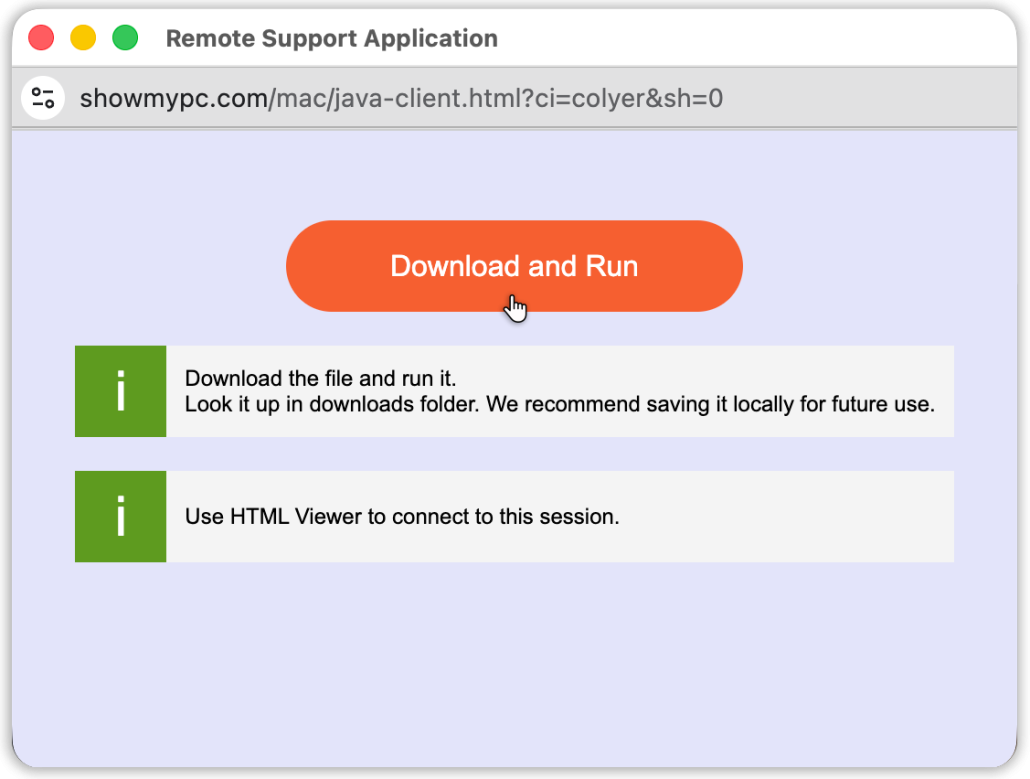
This will open the download app interface window. Click “Download and Run“…
Depending on your browser settings, this will either…
– automatically download the “colyerShow3614.app.zip” file to your downloads… – or – Open your file download screen to chose the save location.
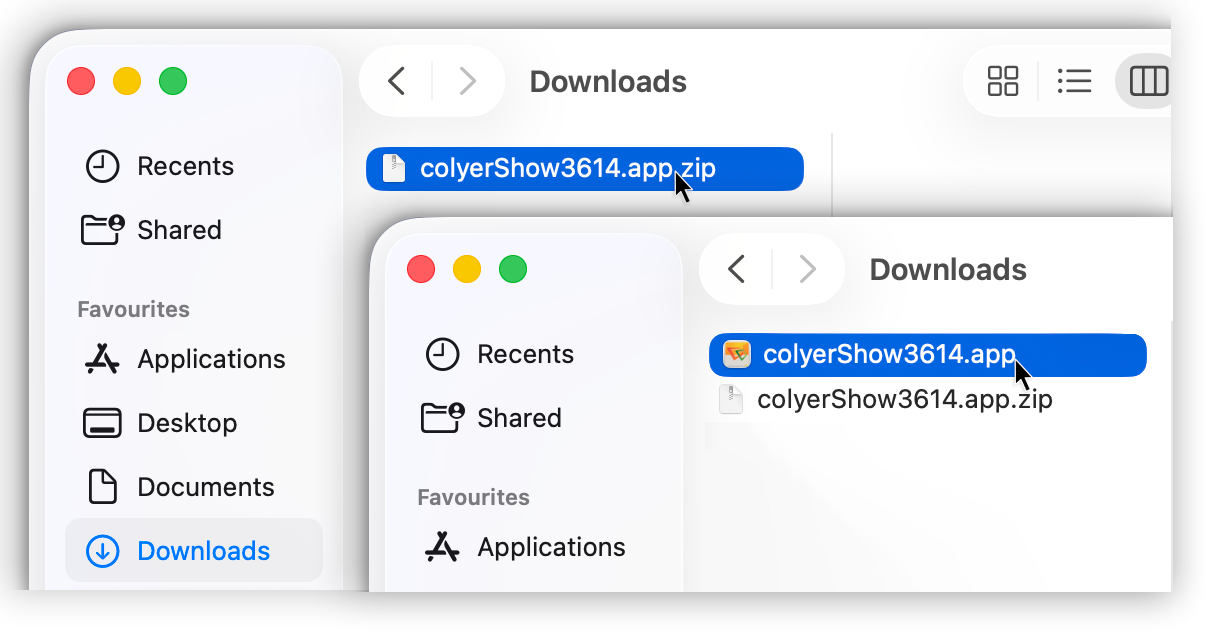
Locate where the downloaded ZIP file “colyerShow3614.app.zip” was saved.
a. Double click to extract the “colyerShow3614.app“.
b. Double click to run the app.
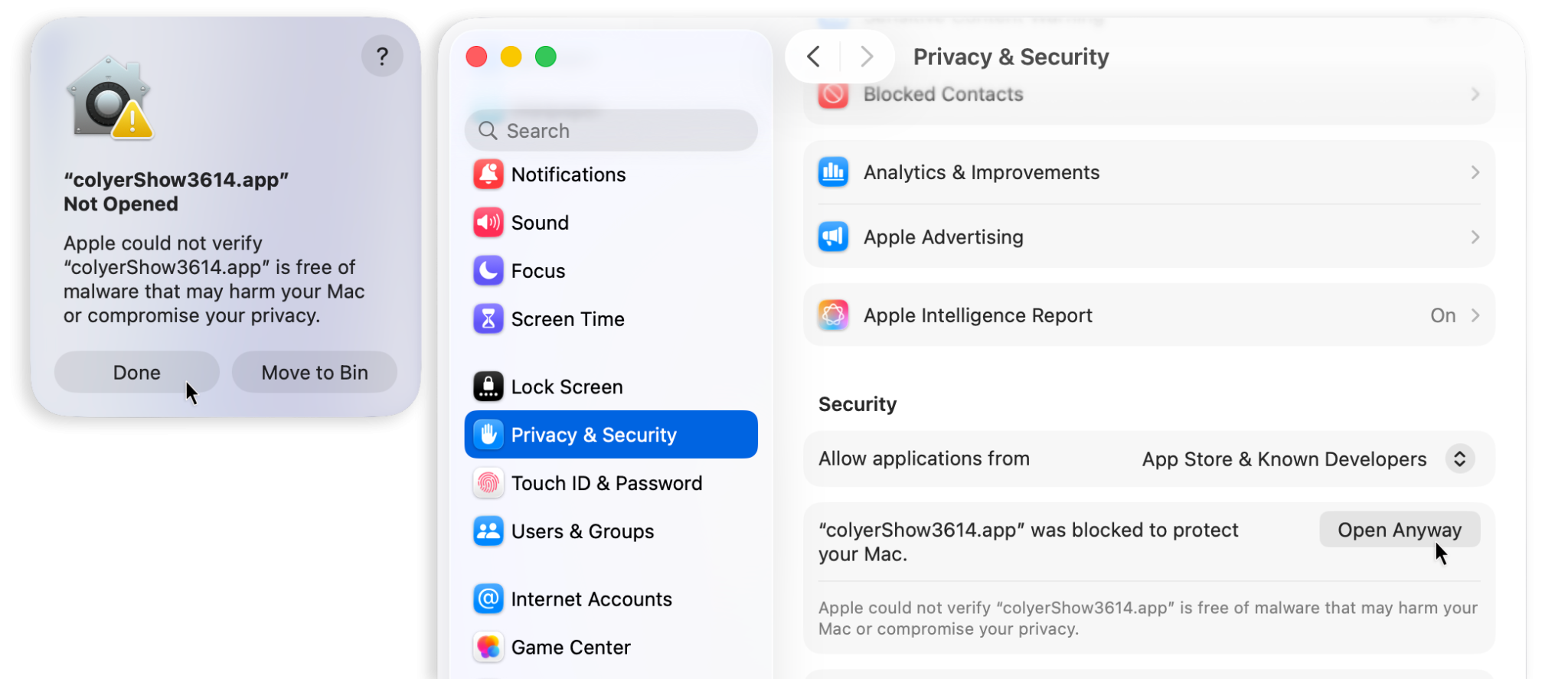
Applications not installed from the app store sometimes get blocked and generate a not opened popup.
a. Click “Done”
b. Open  Settings and scroll down to “Privacy & Security“.
c. Scroll down to security and click on “Open Anyway“.
d. Another notification window will pop up click “Open Anyway”.
e. Enter your password to install.
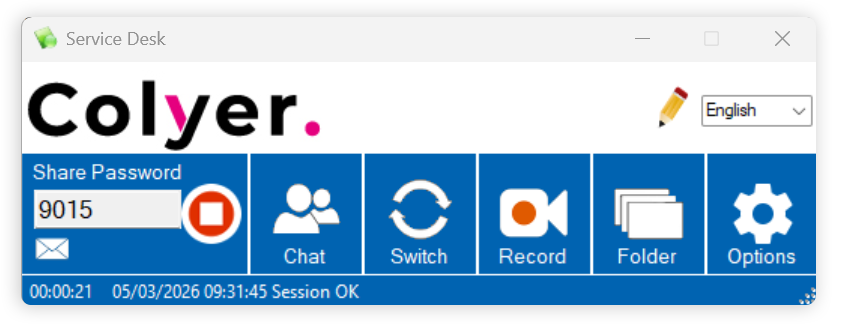
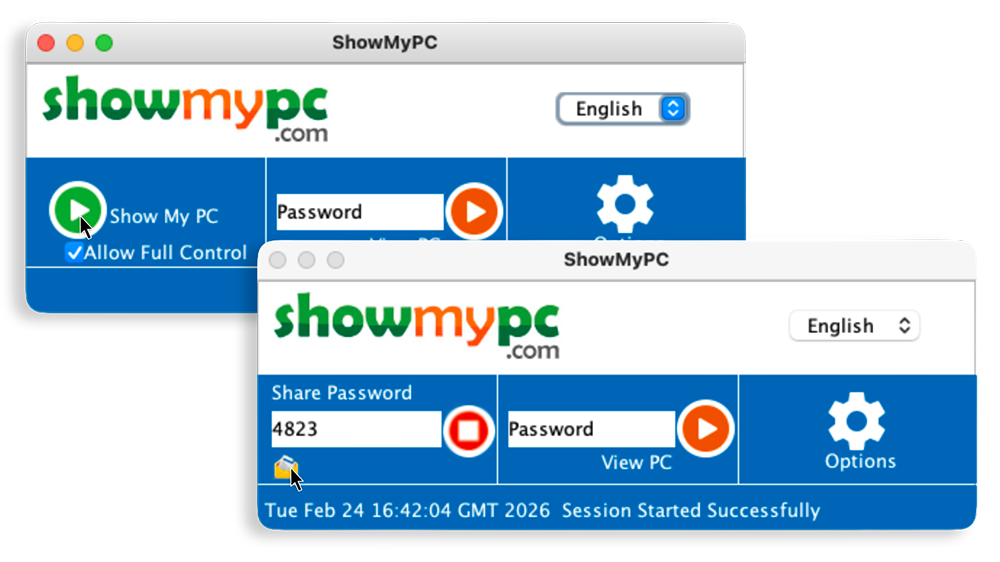
The ShowMyPC app should automatically open once installed. If not it can be accessed via your apps menu.
Next share the password allocated with your support technician. Either over the phone or email it to servicedesk@colyer.co.uk.
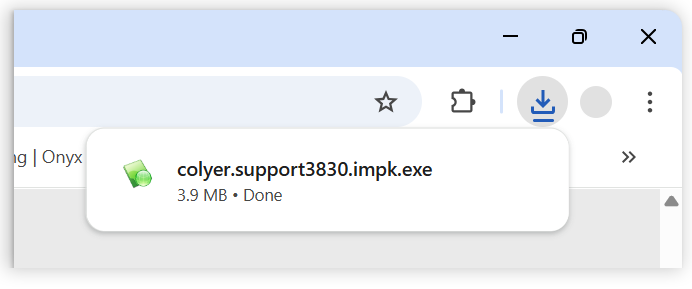
Depending on your browser and settings… the install file will automatically download “colyer.support3830.impk.exe” to your downloads folder or your chosen directory.
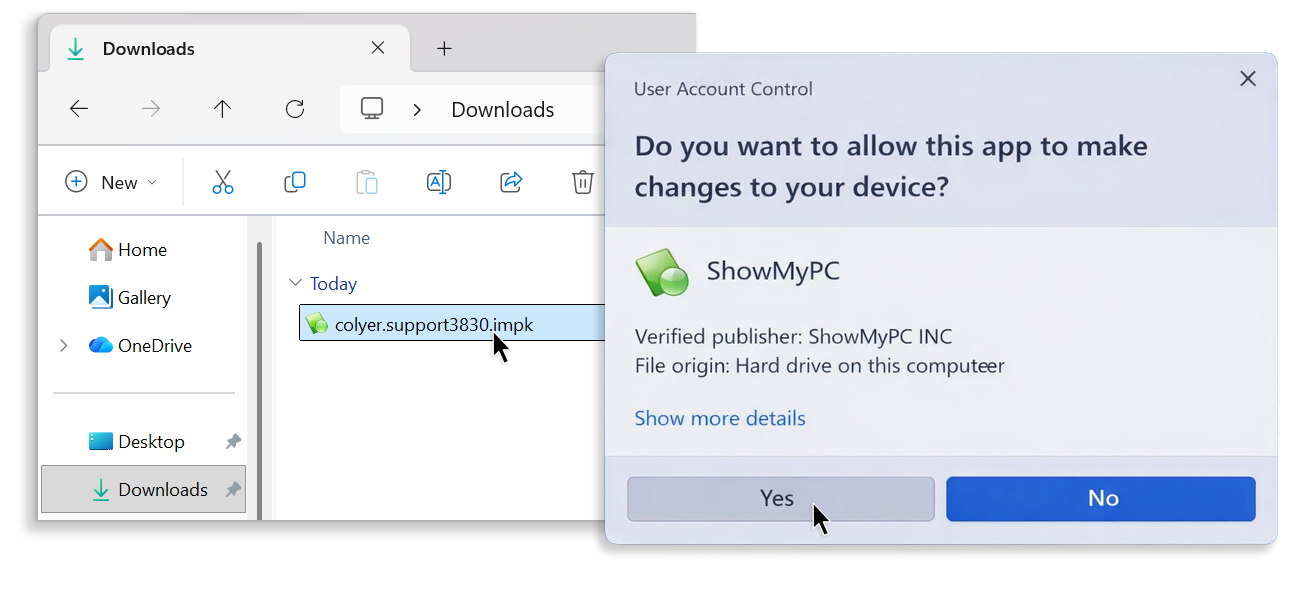
Locate where the downloaded file “colyerShow3830.impk” was saved.
a. Double click to run it.
b. Click Yes to allow the application to make changes.
Once the ShowMyPC App has opened Click “Start a Meeting” and allow it to connect.
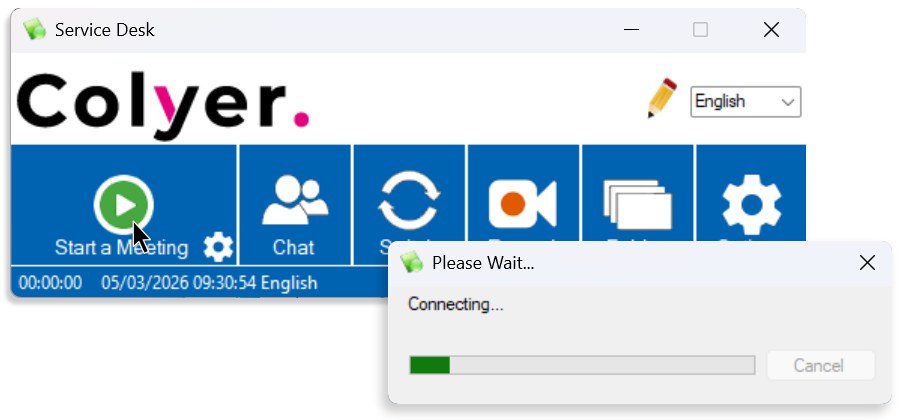
To share the password allocated with your support technician. Either tell them over the phone or email it to servicedesk@colyer.co.uk.